ONIC Internet Setting Complete APN Configuration Guide

If your ONIC SIM is connected to the network but mobile data is not working, the problem is often related to the APN configuration. The correct onic internet setting helps your phone connect to ONIC’s mobile network and provides stable internet for browsing, streaming, gaming, and social media. Whether you use Android or iPhone, setting up the correct APN takes only a few minutes.
What Is ONIC Internet Setting?
The onic internet setting is a group of Access Point Name (APN) values that allow your smartphone to connect to ONIC’s mobile internet service. APN acts as the bridge between your phone and your mobile carrier’s network. Without the correct APN, your device may show network coverage but fail to access the internet. Every mobile operator provides its own APN values. When these values match the carrier’s network, your phone can send and receive data properly. If you are using the onic liberty plan, the correct APN settings ensure you receive stable internet performance included with your subscription.
Why Is the Correct APN Important?
A properly configured APN ensures that your phone communicates with the mobile network without interruption. Incorrect settings may cause slow speeds, connection failures, or apps that cannot access the internet. Some common benefits of using the correct APN include:
- Faster mobile internet
- Stable browsing and streaming
- Reliable social media access
- Smooth online gaming
- Quick app downloads
- Better network performance
These advantages make it important to verify your APN whenever mobile data stops working.
Latest ONIC Internet Setting (APN)
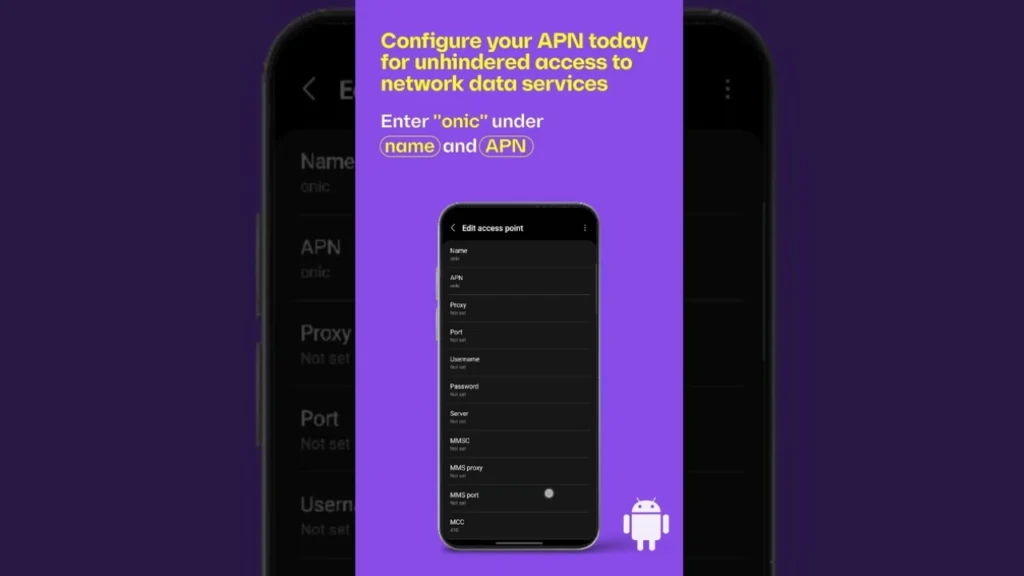
The following table shows the recommended APN values for most Android phones and iPhones.
| Setting | Value |
|---|---|
| Name | ONIC |
| APN | ONIC |
| Proxy | Not Set |
| Port | Not Set |
| Username | Not Set |
| Password | Not Set |
| MCC | 410 |
| MNC | 03 |
| Authentication Type | None |
| APN Type | default |
| APN Protocol | IPv4/IPv6 |
| Bearer | Unspecified |
Always save the APN after entering these values and restart your phone to apply the changes.
How to Configure ONIC Internet Setting on Android?
Android devices may have slightly different menus depending on the manufacturer, but the process remains almost the same.
Open Settings and tap Network & Internet or Mobile Network. Select your ONIC SIM and open Access Point Names (APN). Tap the Add (+) button to create a new APN. Enter all the values shown in the table above. Save the profile and select it as the active APN.
After saving the settings, restart your phone. Once the device reconnects to the network, mobile data should begin working. If your internet still does not connect, double-check every value because even a small typing mistake can prevent the connection.
How to Configure ONIC Internet Setting on iPhone?
Setting up the onic internet setting on an iPhone is also simple.
Open Settings, then tap Cellular. Select Cellular Data Options and open Cellular Network. Enter ONIC in the APN field and leave the Username and Password fields blank unless instructed otherwise. Save the settings if your device allows editing and restart your iPhone.
Some iPhones receive carrier settings automatically. If you cannot edit the APN, update your carrier settings through iOS and ensure your phone runs the latest software version.
Common Reasons Why ONIC Internet Is Not Working
Even with the correct APN, several issues can prevent mobile data from working. Understanding these causes helps you solve the problem faster.
| Possible Issue | Solution |
|---|---|
| Incorrect APN | Re-enter the correct APN values |
| Mobile data disabled | Turn mobile data on |
| No active data package | Subscribe to a valid ONIC bundle |
| Airplane mode enabled | Disable Airplane Mode |
| SIM not activated | Complete SIM activation |
| Software issue | Restart the phone |
| Weak signal | Move to an area with better coverage |
Most internet problems disappear after checking these basic settings.
How to Reset Network Settings?
If changing the APN does not solve the problem, resetting the network settings may help.
On Android, open Settings, select System, then Reset Options, and choose Reset Wi-Fi, Mobile & Bluetooth. Your phone will restart with fresh network settings.
On iPhone, go to Settings, select General, then Transfer or Reset iPhone, tap Reset, and choose Reset Network Settings. After the reset, enter the onic internet setting again if required.
Tips to Improve ONIC Mobile Data Speed
The correct APN is only one part of a fast internet connection. Your device, signal strength, and network congestion also affect speed.
Keep your phone updated with the latest software because updates often improve network compatibility. Restart your phone regularly to refresh the mobile connection. Stay in areas with stronger signal coverage whenever possible. Close background apps that consume excessive data and avoid downloading large files during peak hours if the network feels slow.
These simple habits often improve internet performance without changing any advanced settings.
Does ONIC Support 4G and 5G?
Yes. ONIC supports modern mobile technologies, including 4G LTE and 5G in supported areas. Your actual speed depends on your phone’s compatibility, local network coverage, and your selected data package. To enjoy the fastest speeds, ensure your smartphone supports 4G or 5G bands used in Pakistan. Also check that your preferred network type is set to 4G/5G Auto in your mobile network settings.
When Should You Change the APN?
Most users never need to edit the APN manually. However, there are situations where changing it becomes necessary. You should check the APN after switching to a new phone, performing a factory reset, installing custom software, replacing the SIM card, or if your internet suddenly stops working even though calls and SMS continue to function. Whenever you manually change the APN, compare every value with the official configuration before saving.
Safety Tips While Editing APN Settings
Always use the official APN values provided by ONIC. Avoid downloading internet settings from unknown websites because incorrect information may cause connectivity problems. Do not modify fields unless you understand their purpose. Most users only need to enter the APN name and leave optional fields unchanged. If you accidentally create multiple APNs, delete unused profiles to avoid conflicts.
Final Thoughts
Setting up the correct onic internet setting is one of the easiest ways to solve mobile data issues on your smartphone. Whether you use Android or iPhone, entering the correct APN values allows your device to communicate properly with the ONIC network. In most cases, the process takes only a few minutes and restores internet access immediately. If your internet still does not work after applying the correct onic internet setting, verify that your SIM is active, your data package is valid, and your phone has good network coverage.