Zong Internet Setting Step-by-Step Approach Guide 2025

If you are a Zong user and facing issues with internet connectivity, setting up your mobile internet correctly can resolve the problem. In this comprehensive guide, we will take you through the process of configuring the Zong internet setting on your device. Whether you’re using a smartphone, tablet, or any other device, this guide will ensure that you’re always connected to the internet without hassle.
What Are Zong Internet Settings?
Before we delve into the configuration process, it is essential to understand what Zong internet setting actually refers to. The internet settings on your phone, also known as Access Point Name (APN) settings, are crucial for connecting your mobile device to Zong’s internet network. These settings are required to access mobile data services, including browsing the internet, sending MMS, and using apps that require data connectivity.
The Zong internet setting includes information such as the APN, username, password, and other configuration details, which your mobile network provider uses to grant internet access. However, if you’re facing issues or need to reset the settings, this guide will help you set it up manually. If you’re also looking for an alternative option for daily data plans, check out the Ufone Daily Internet Package for great deals.
Why Do You Need to Configure Internet Settings?
Sometimes, even after inserting your Zong SIM card, your device might not connect to the internet. This can happen for various reasons, including incorrect or outdated APN settings, software updates, or a simple network issue. By setting the Zong internet setting manually, you can solve the connectivity problem and ensure you can use all of Zong’s mobile data services without interruption.
Additionally, if you switch to a new device or update your operating system, you may need to update the Zong internet to make sure you can continue accessing the internet smoothly.
How to Get Zong Internet Settings Automatically?
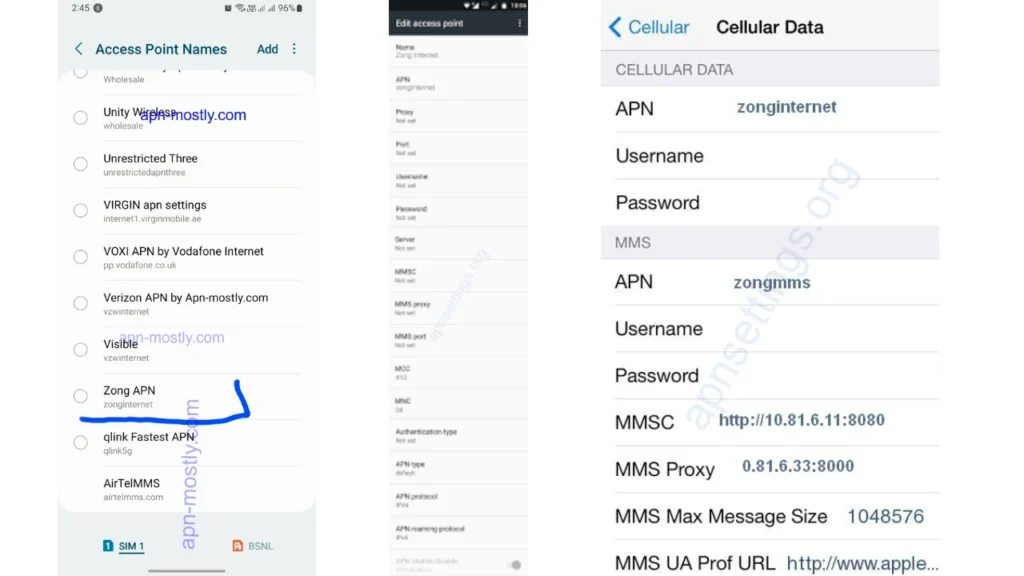
Most users can receive the Zong internet automatically. Zong sends these settings when you first insert their SIM card into your mobile device. If for any reason you did not receive them, you can request the settings by:
- *Dialing 123# on your phone. This will send a request for Zong internet settings.
- Sending an SMS with the word “GPRS” to 131. After sending the message, you should receive a reply containing the correct settings for mobile data access.
Once you receive the settings, you may need to save them in your phone’s APN settings.
How to Set Internet Settings Manually?
If you did not receive the automatic settings, or if the default settings are not working properly, you can configure the Zong internet manually. Here is a step-by-step guide for both Android and iPhone users.
Internet Settings for Android
- Open the Settings app on your Android phone.
- Scroll down and select Mobile Networks or Connections.
- Tap on Access Point Names (APN).
- If there is an existing Zong APN, select it and check if the settings are correct. If not, tap on the Add icon (usually a “+” sign).
- Now enter the following settings:
- Name: Zong Internet
- APN: internet
- MMSC: Leave blank
- MMS Proxy: Leave blank
- MMS Port: Leave blank
- Username: Leave blank
- Password: Leave blank
- MCC: 410
- MNC: 03
- After entering the above details, Save the settings.
- Once saved, select the newly created Zong APN from the list.
- Restart your phone to apply the new settings.
Internet Settings for iPhone
For iPhone users, the process is similar, but the settings menu is a bit different.
- Open Settings on your iPhone.
- Tap Cellular or Mobile Data.
- Then, tap Cellular Data Options or Mobile Data Options.
- Select Cellular Network.
- Enter the following details in the corresponding fields:
- APN: internet
- Username: Leave blank
- Password: Leave blank
- Tap Save to store the settings.
- Restart your phone to make sure the new settings are applied.
How to Check if Zong Internet Settings Are Correct?
Once you have set up the Zong internet setting, you can verify if they are working correctly by opening a web page or using an app that requires data connectivity. If your phone successfully connects to the internet, then the settings are correct.
If you’re still facing connectivity issues, double-check the internet setting, ensure that you have data enabled, and check if your phone is in an area with good network coverage. For users looking for affordable communication options, you can also explore the Zong WhatsApp Package Weekly for convenient data bundles.
Zong Internet Settings for Different Devices
While most people use smartphones, you may also be using other devices like tablets or mobile hotspots to access the internet through Zong. The Zong internet is not limited to phones and can also be configured on other devices like:
- Tablets: Zong internet can be set up on your tablet the same way you would on a smartphone by manually entering the APN settings.
- Mobile Hotspots: If you use a Zong mobile hotspot device, you will need to access its settings through the web interface or app and enter the APN settings manually to access the internet.
Troubleshooting Internet Setting Issues
If you have followed the above steps and still face issues with your Zong internet, here are some troubleshooting tips that can help:
- Check your network coverage: Ensure that you are in an area with strong Zong network coverage. You can try moving to a different location to see if the internet connection improves.
- Restart your device: Sometimes, simply restarting your phone or device can help to apply the new settings and restore the connection.
- Reset the APN settings: If the settings are not working, try deleting the APN and setting it up again.
- Contact Zong customer support: If none of the above methods work, reach out to Zong’s customer support by calling 310 or visiting their website for further assistance.
Conclusion
In this guide, we’ve covered everything you need to know about the internet setting, from automatic configuration to manual setup. Whether you are facing internet connectivity issues or simply need to update the settings on your device, following these steps will ensure you’re always connected. Zong’s fast and reliable internet service is only a few settings away. If you continue to experience issues, don’t hesitate to contact Zong’s customer service for further support.